
I'm really excited to be able to try MindsDB's new open-source agent for conversational analytics. It's different from everything I previously tried in a single crucial aspect: it makes me feel confident and free in choosing how to converse with it, a feeling that I only have when interacting with frontier agentic coding environments like Claude Code and Codex.
Anton takes plain-English requests, pulls data, writes SQL and Python as needed to solve the data analytics task, executes this code, and returns things like tables, charts, explanations, and dashboards. When necessary to answer a user's question, Anton can create multi-step plans that gather partial datasets to then combine them at the end. It works with both public data and connected private data sources.
In this tutorial, I will show you how to install, configure, and use Anton as a data analytics companion. Before we start the tutorial, let's first understand its main parts that make it a powerful and helpful AI assistant.
Anton's main parts
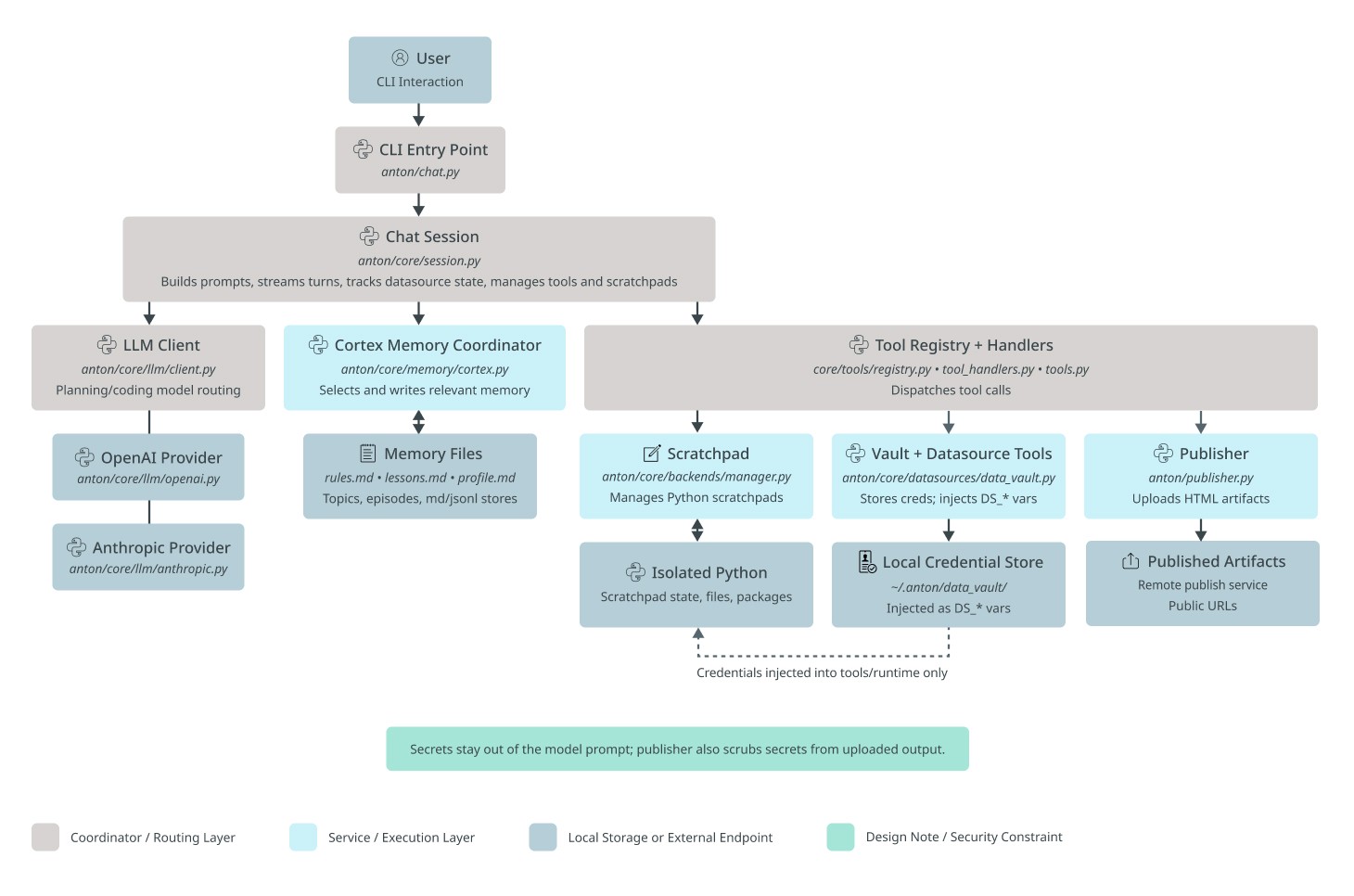
Anton is structured as a brain-inspired loop: a chat session talks to the user and acts as an orchestrator that decides what to do, scratchpads are the working memory where it actually does it, and a memory system records and recalls what it learned. Around that core sit a few infrastructure pieces: the LLM provider abstraction, the data vault, the datasource registry, and the publisher.
At the end of this article, you'll find an appendix detailing each module along with its corresponding source file. As Anton is open-source, I encourage you to examine its codebase firsthand to understand how modern agentic CLI systems work under the hood. For now, here's a high-level overview of Anton's architecture.
Anton is a command-line data assistant made of a few parts that work together in a loop.
The User is the person driving everything from the terminal. They ask questions, request analysis, connect data, or ask Anton to publish results.
The CLI entrypoint is the front door. It starts Anton, accepts the user’s input, and passes that input into the main conversation system.
The ChatSession is the main coordinator. This is the orchestrator of the whole system. It keeps track of the conversation, decides what kind of help is needed next, and connects the user request to the right internal parts. It is responsible for moving the session forward: asking the model to reason, pulling in memory, using tools, and keeping track of the current datasource and scratchpad state.
The Scratchpad is Anton’s working desk for computation. When Anton needs to actually do analysis work, this is where it happens. It is responsible for running Python-based tasks and keeping the working state of that analysis. It is triggered through the tool system and supports requests that need real execution, not just text generation (such as running a Python script, submitting a SQL query to a database management system, calling an API or web search).
The Isolated Python environment is the runtime underneath the scratchpad. It is where code, packages, files, and scratchpad state actually live while work is being done. Its role is to give Anton a contained place to execute analysis safely and separately from the conversation layer.
The LLM client is Anton’s reasoning layer. Its job is to turn the current conversation and context into a next step: explain something, ask for a tool, or decide how to approach a task. It works closely with ChatSession, which gives it the current context and then uses its response to keep the session moving.
The OpenAI provider and Anthropic provider are the model backends behind the LLM client. They are the actual outside model services Anton can rely on. The LLM client chooses and talks to them, while the rest of Anton does not deal with them directly.
The Cortex memory coordinator is Anton’s memory manager. Its purpose is to decide what past information matters right now and what new information should be remembered for later. It sits between ChatSession and Anton’s stored memory, helping Anton stay consistent across tasks instead of treating every request like a totally fresh start.
The Memory files are where that memory lives. They hold saved notes, lessons, topics, and other useful context. Cortex reads from them and writes to them, while ChatSession benefits from that memory indirectly through Cortex.
The Tool registry + handlers are Anton’s action system. This is the part that turns a model decision into real work. If Anton needs to run Python, access credentials, connect to data, or publish an artifact, this module dispatches the right tool. It acts as the bridge between “deciding” and “doing.”
The Vault + datasource tools are responsible for data access and secret handling. Their logic is simple: Anton often needs credentials and datasource connections, but those should not be mixed into the model prompt. This module stores and injects the needed credentials only into the runtime and tools that require them. It interacts with the tool system above it and with the credential store below it.
The Local credential store is where saved credentials live. It supports the vault layer by holding connection details that Anton can reuse. The user benefits from it because they do not need to re-enter everything each time, while the rest of Anton benefits because credentials can be supplied only where needed.
The Publisher is Anton’s output-sharing module. Its role is to take generated artifacts, especially HTML-style outputs, and make them available as something the user can open or share. It is called through the tool system when the user asks for published output.
The Published artifacts box represents the final hosted result of that publishing step. This is the user-facing destination for reports, dashboards, or other shareable outputs created by Anton.
At a high level, the logic of Anton is this: the user asks for something in the CLI, the request enters through the CLI entrypoint, ChatSession coordinates the response, the LLM client helps decide what to do, Cortex provides memory, the tool system carries out actions, Scratchpad handles computation, the vault handles secure data access, and Publisher turns finished outputs into something shareable. All of these parts are separate so Anton can reason, remember, act, and publish without mixing those responsibilities together.
Now that you understand Anton's high-level architecture, let's start with installation.
1. Install Anton from the command line
macOS / Linux
curl -sSf https://raw.githubusercontent.com/mindsdb/anton/main/install.sh | sh && export PATH="$HOME/.local/bin:$PATH"
curl -sSf https://raw.githubusercontent.com/mindsdb/anton/main/install.sh | sh && export PATH="$HOME/.local/bin:$PATH"
curl -sSf https://raw.githubusercontent.com/mindsdb/anton/main/install.sh | sh && export PATH="$HOME/.local/bin:$PATH"
curl -sSf https://raw.githubusercontent.com/mindsdb/anton/main/install.sh | sh && export PATH="$HOME/.local/bin:$PATH"
Windows PowerShell
irm https://raw.githubusercontent.com/mindsdb/anton/main/install.ps1 | iex
irm https://raw.githubusercontent.com/mindsdb/anton/main/install.ps1 | iex
irm https://raw.githubusercontent.com/mindsdb/anton/main/install.ps1 | iex
irm https://raw.githubusercontent.com/mindsdb/anton/main/install.ps1 | iex
2. Launch Anton
Once installed, simply type the bellow command in the command line:
antonantonantonantonIf you want Anton to use a specific workspace directory, run it with the --folder parameter:
anton --folder /path/to/workspace
anton --folder /path/to/workspace
anton --folder /path/to/workspace
anton --folder /path/to/workspace
3. Connect Anton to a data source
Anton accepts some built-in commands that don't require an LLM to understand. These commands are preceded with a forward slash and followed by the command name. You can see all supported built-in commands by typing /help and hitting Enter:
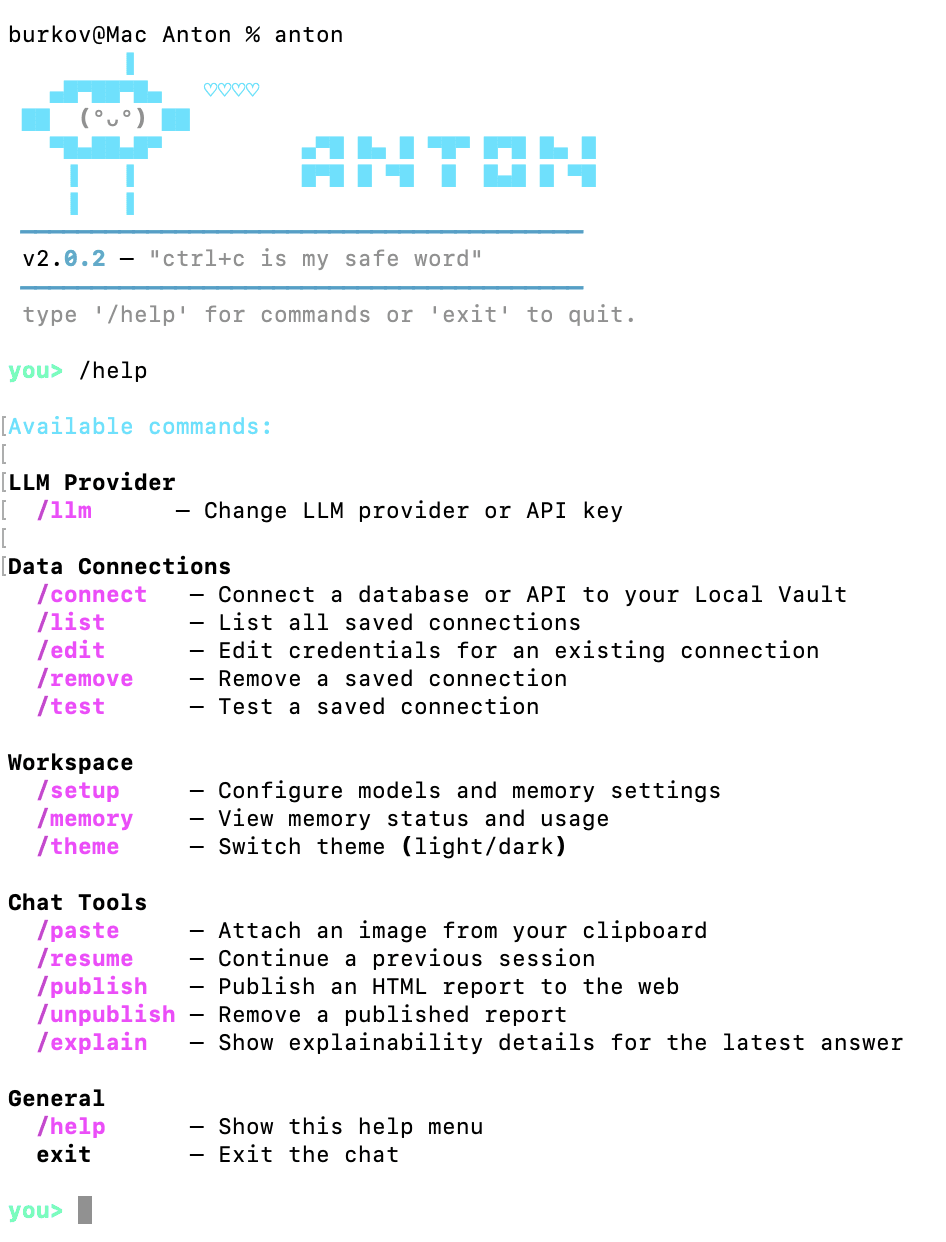
Since we are wanting to analyze some data, we need to point Anton to a source of data. For this, we will use the /connect command:
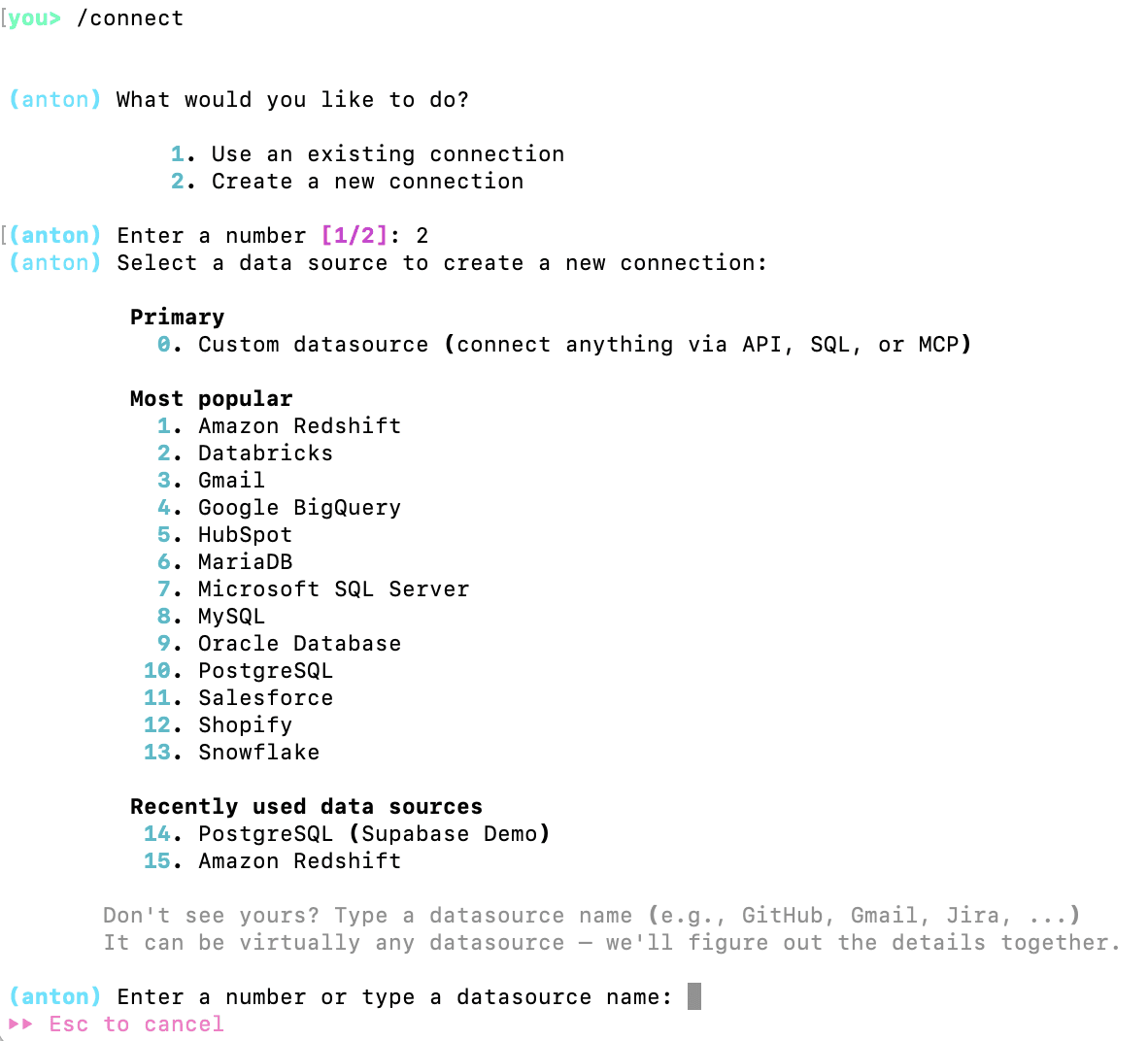
As you can see, Anton supports a variety of data sources. If the user asks for it during the conversation, Anton can also execute web search and get the web data.
For this tutorial, I will connect to the data I have on Amazon Redshift:
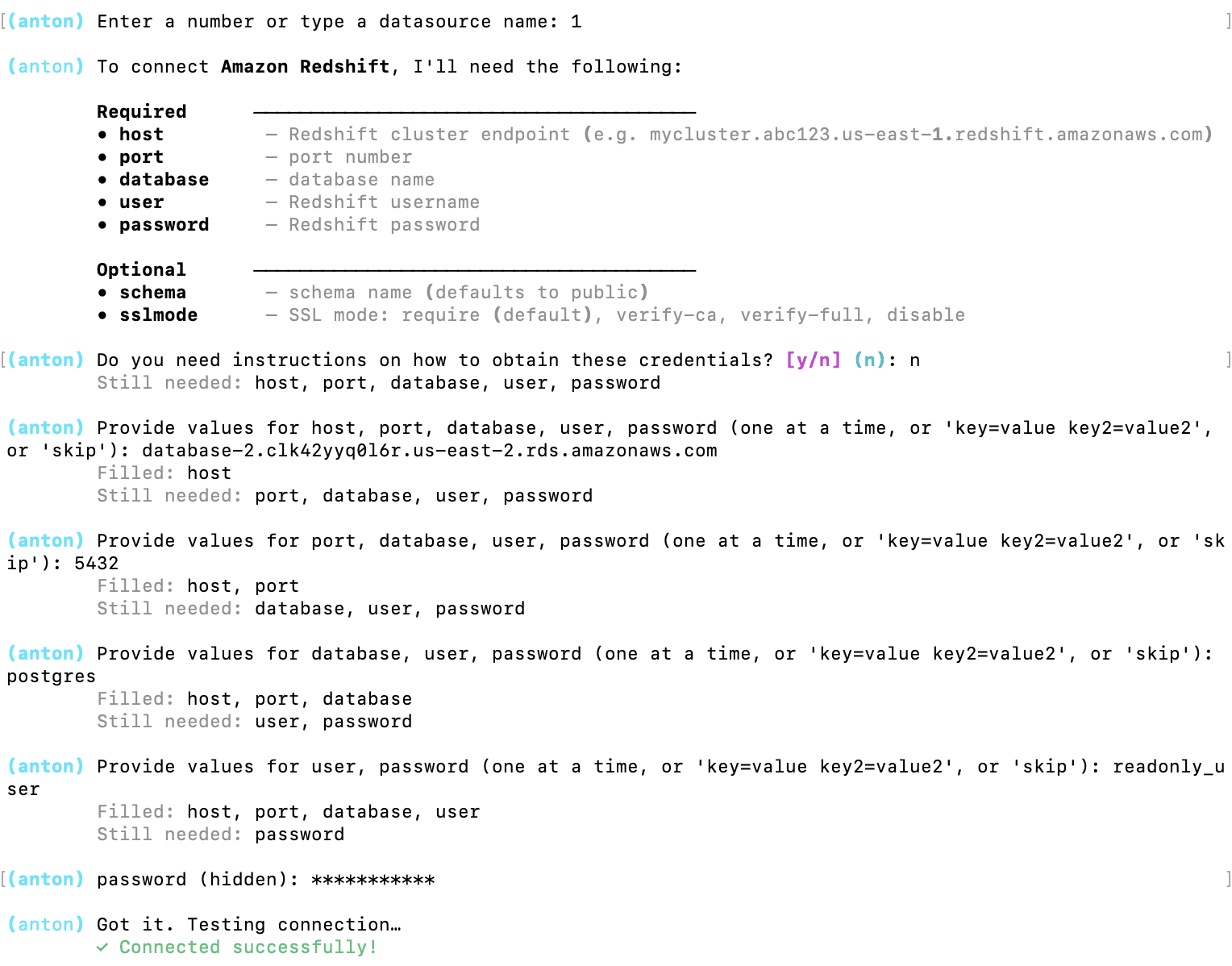
Anton asked for the credentials and I provided then one by one.
Now Anton is connected to a datasource. Let's ask it to describe it for us:

Oh, right, Anton needs an LLM to work and we didn't provide the credentials for any LLM. Let's use /help to see how to do that:
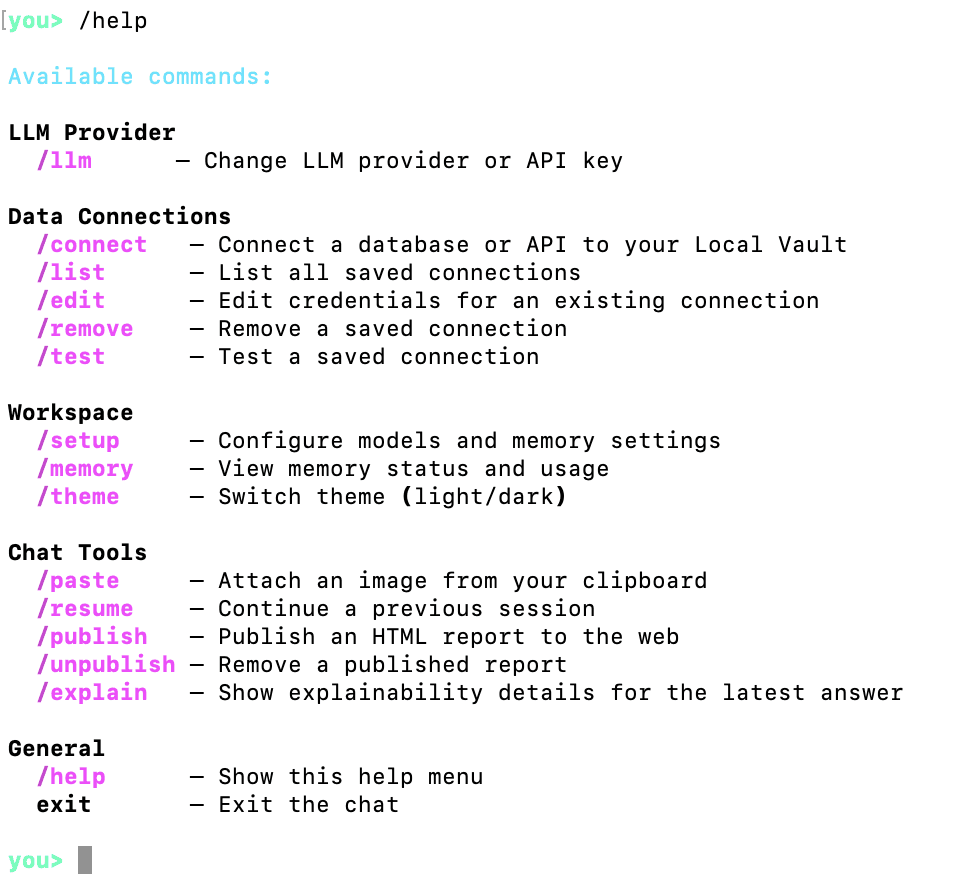
The command we need is /llm:
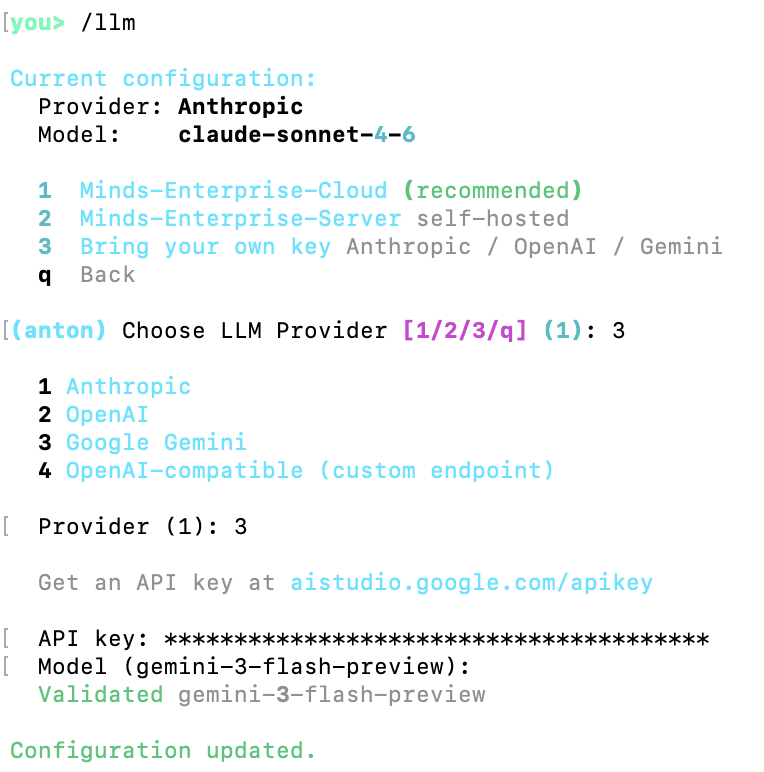
As you can see, the was Anthropic's Sonnet model already configured, but the key likely expired, so I changed the configuration to use Gemini instead and provided a working Gemini API key.
Now, let's try our datasource description request again:
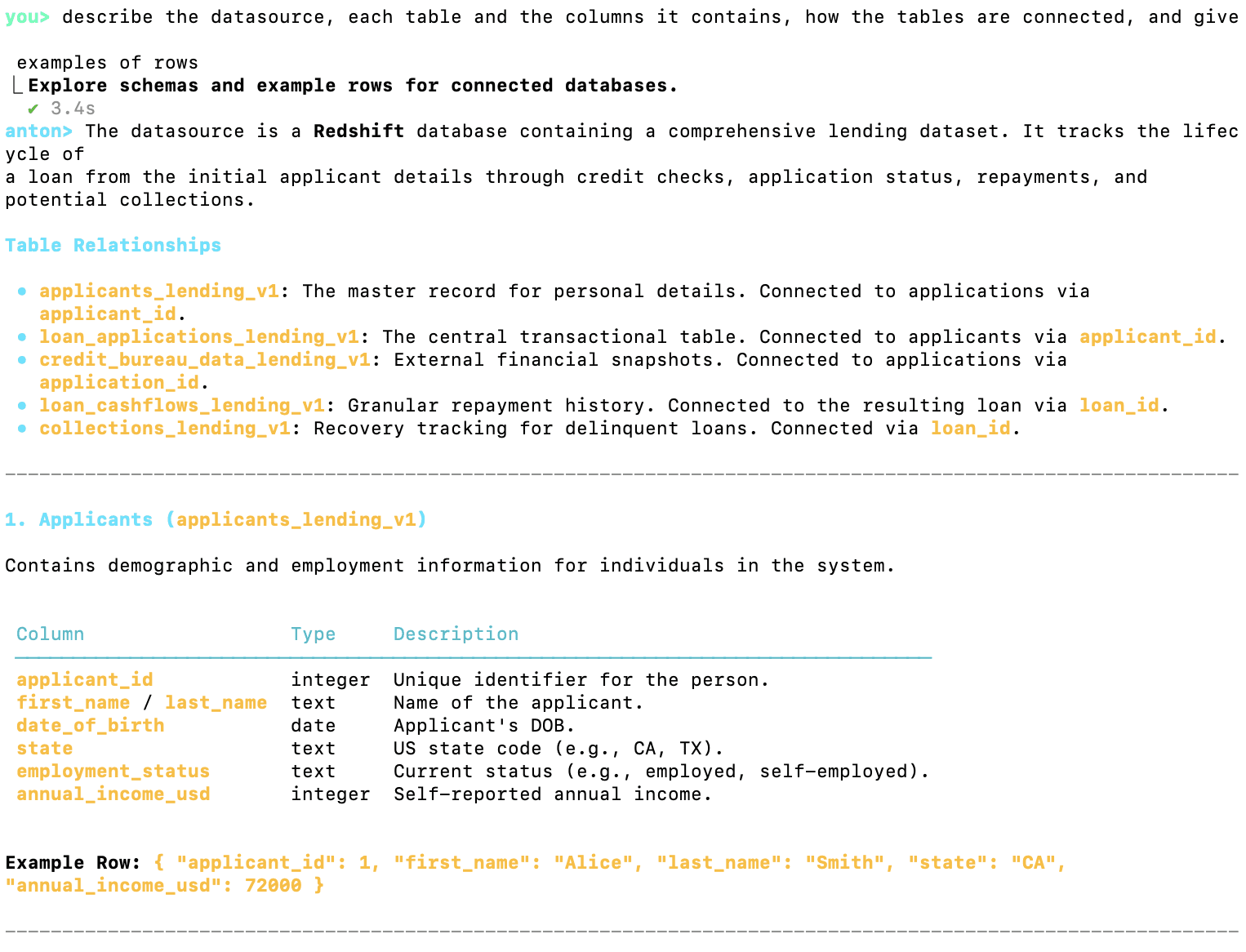
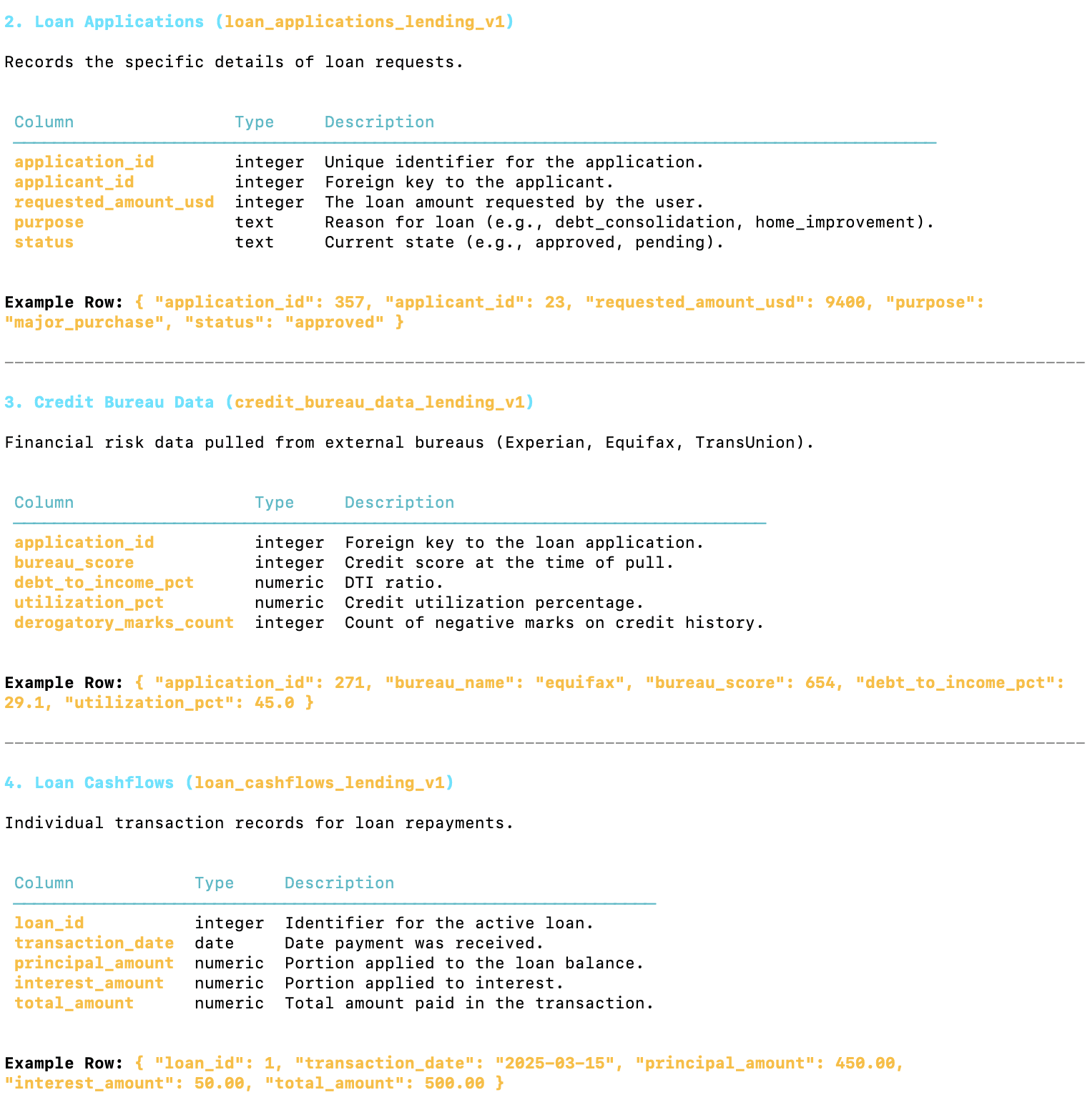
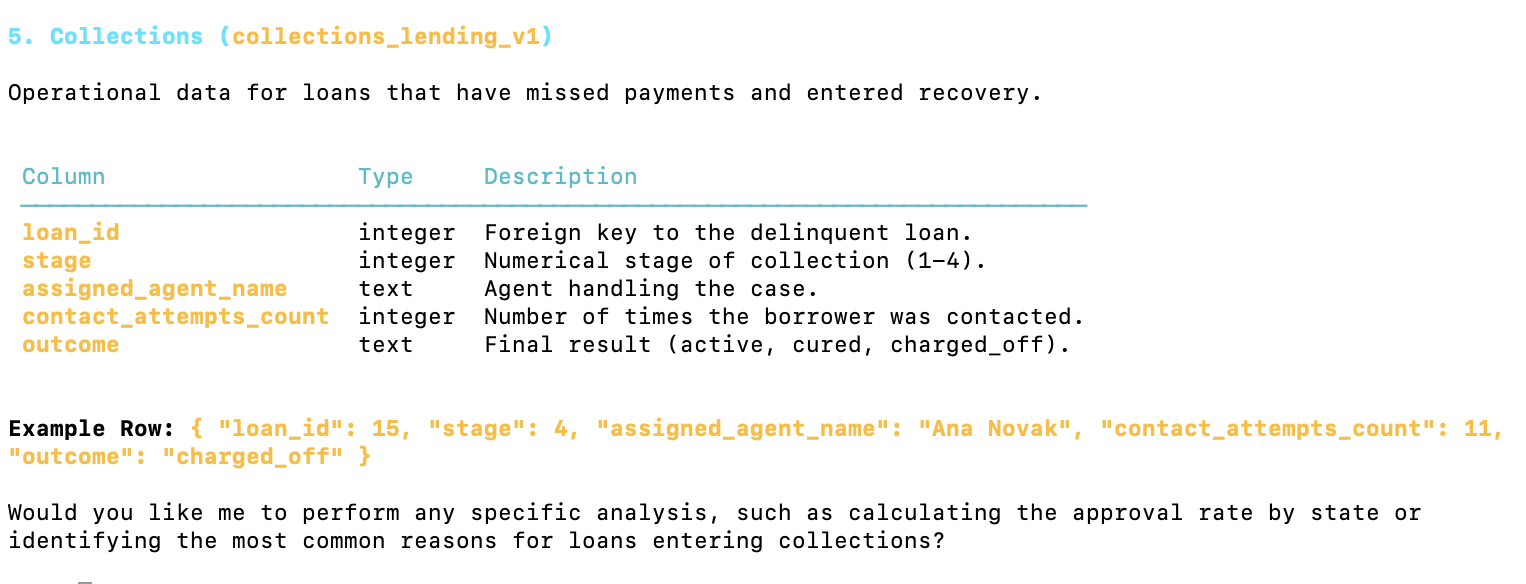
As you can see from this analysis, the datasource is a Redshift database containing a comprehensive lending dataset.
It tracks the lifecycle of a loan from the initial applicant details through credit checks, application status, repayments, and potential collections.
I'm not an expert in lending, so I will ask Anton to come up with three questions about the data that a financial data analyst would want to ask:
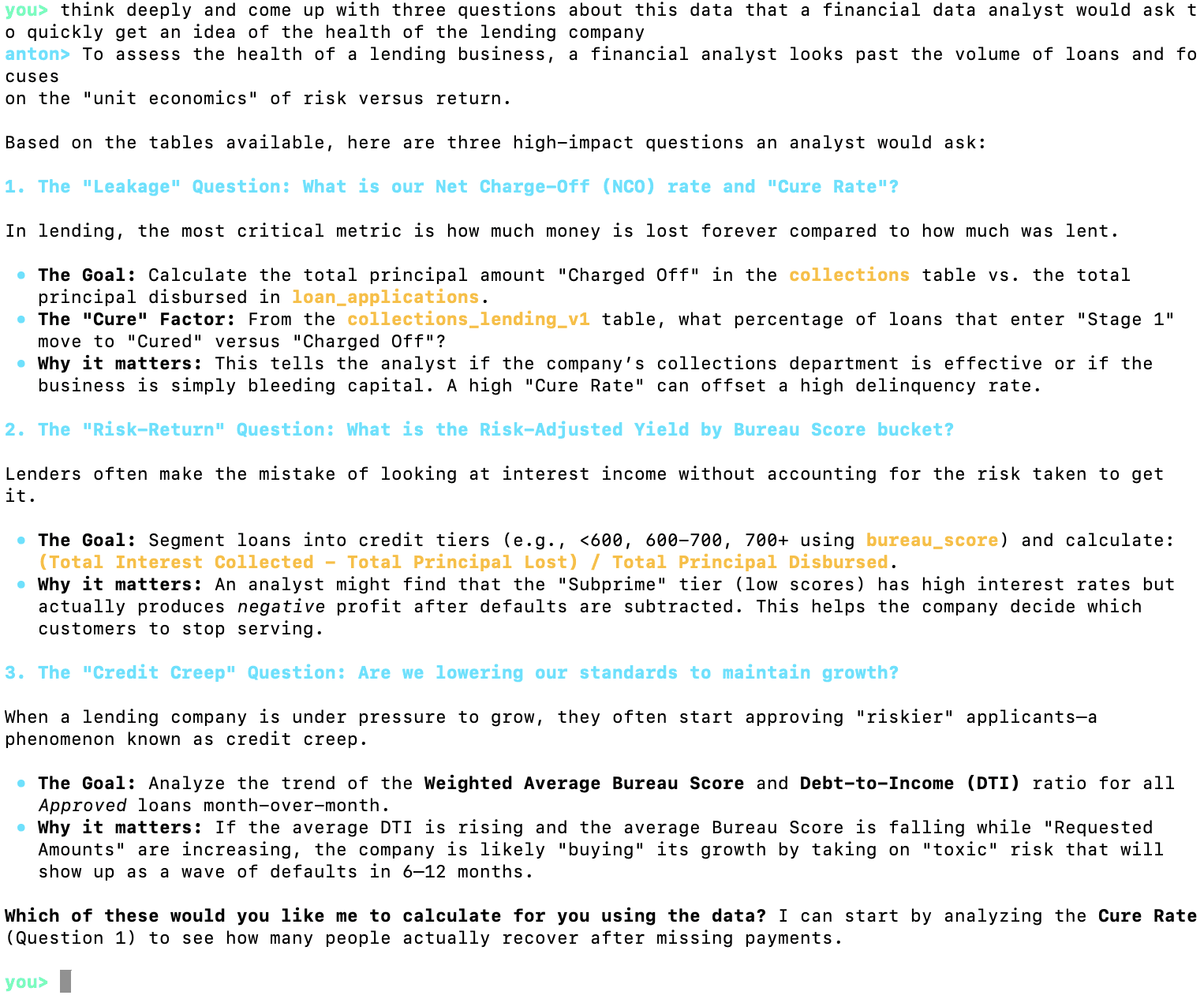
These seem to be interesting questions, so I will allow Anton answer the first one:
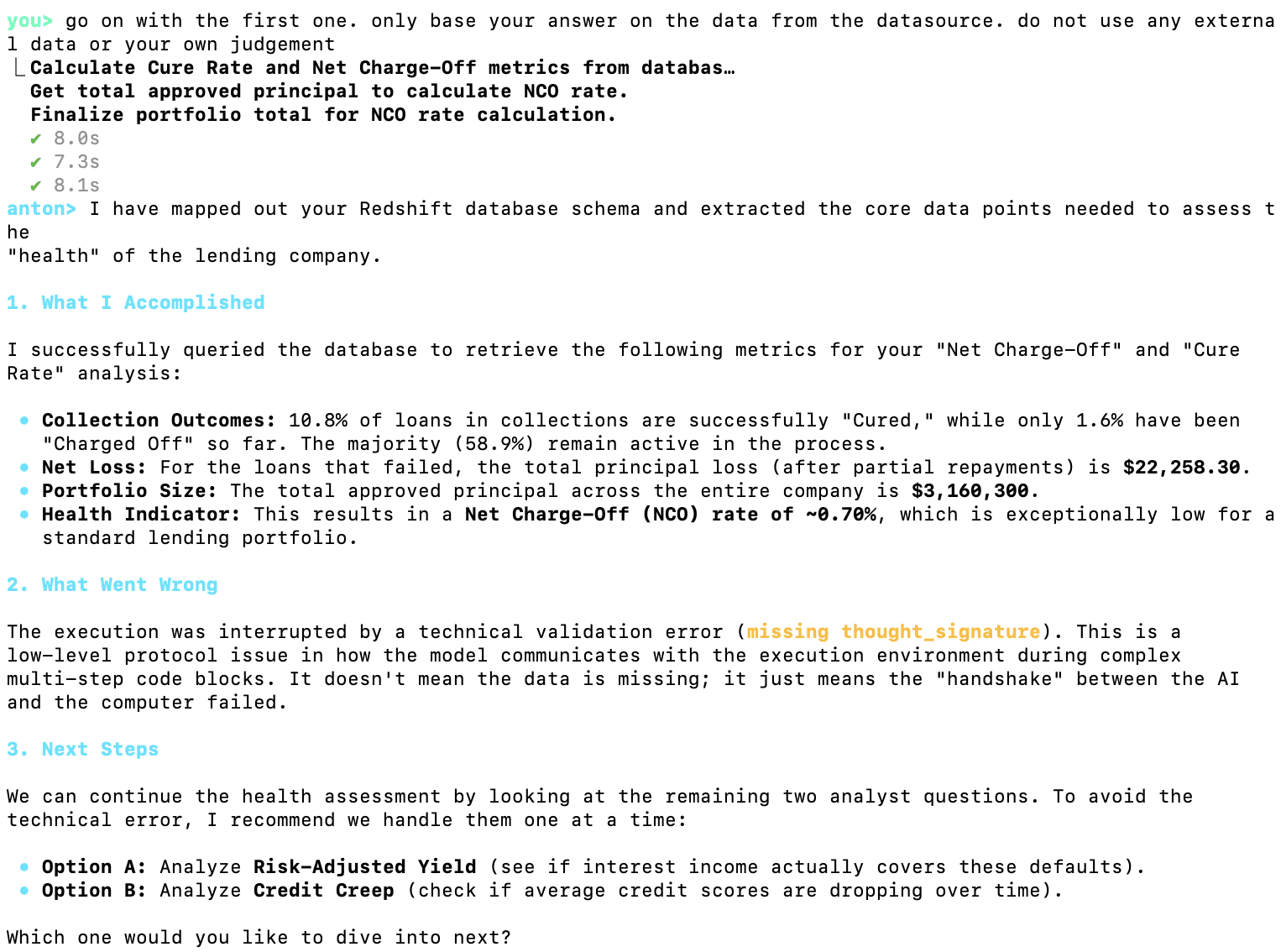
As you can see, Anton solved the task in three steps, each of which involved using the scratchpad to pull the data and make the necessary aggregations:
Calculate Cure Rate and Net Charge-Off metrics from database
Get total approved principal to calculate NCO rate.
Finalize portfolio total for NCO rate calculation.
Now let's test Anton's built-in dashboard feature:
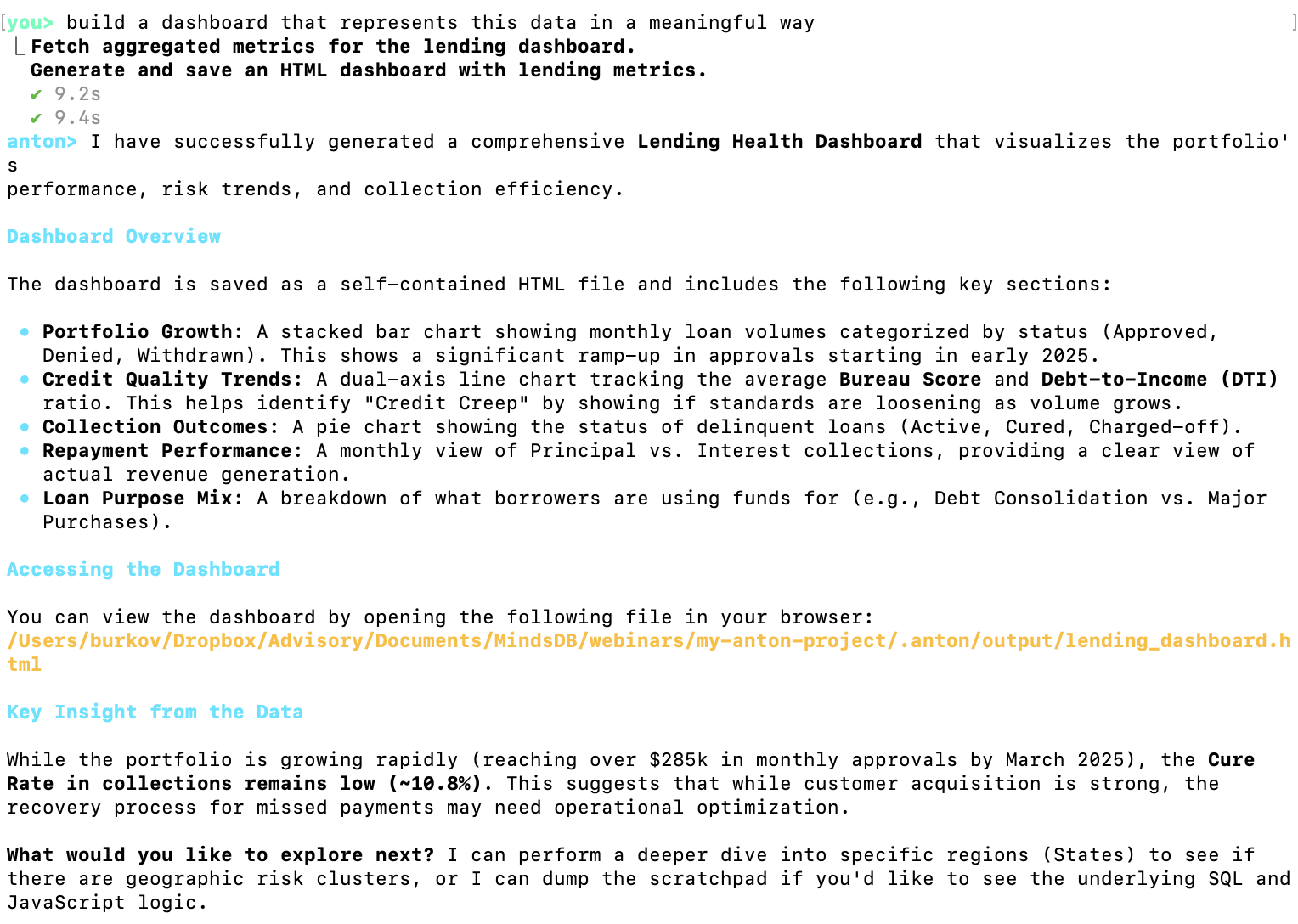
As you can see, I asked Anton to build a dashboard in plain English. I could add any detail I need, but I decided to let Anton decide what graphs to put on the dashboard.
The dashboard was generated as an HTML file saved on my local hard drive. Anton supports the `/publish` command that allows sharing the dashboard with anyone online:
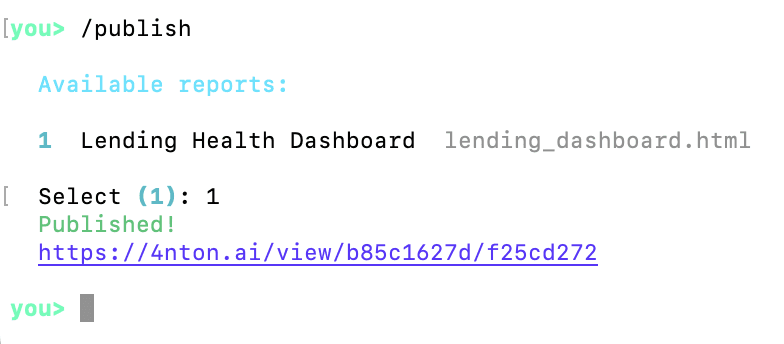
The URL is reachable by anyone with the link. If you click on it, you will see the dashboard generated by Anton:
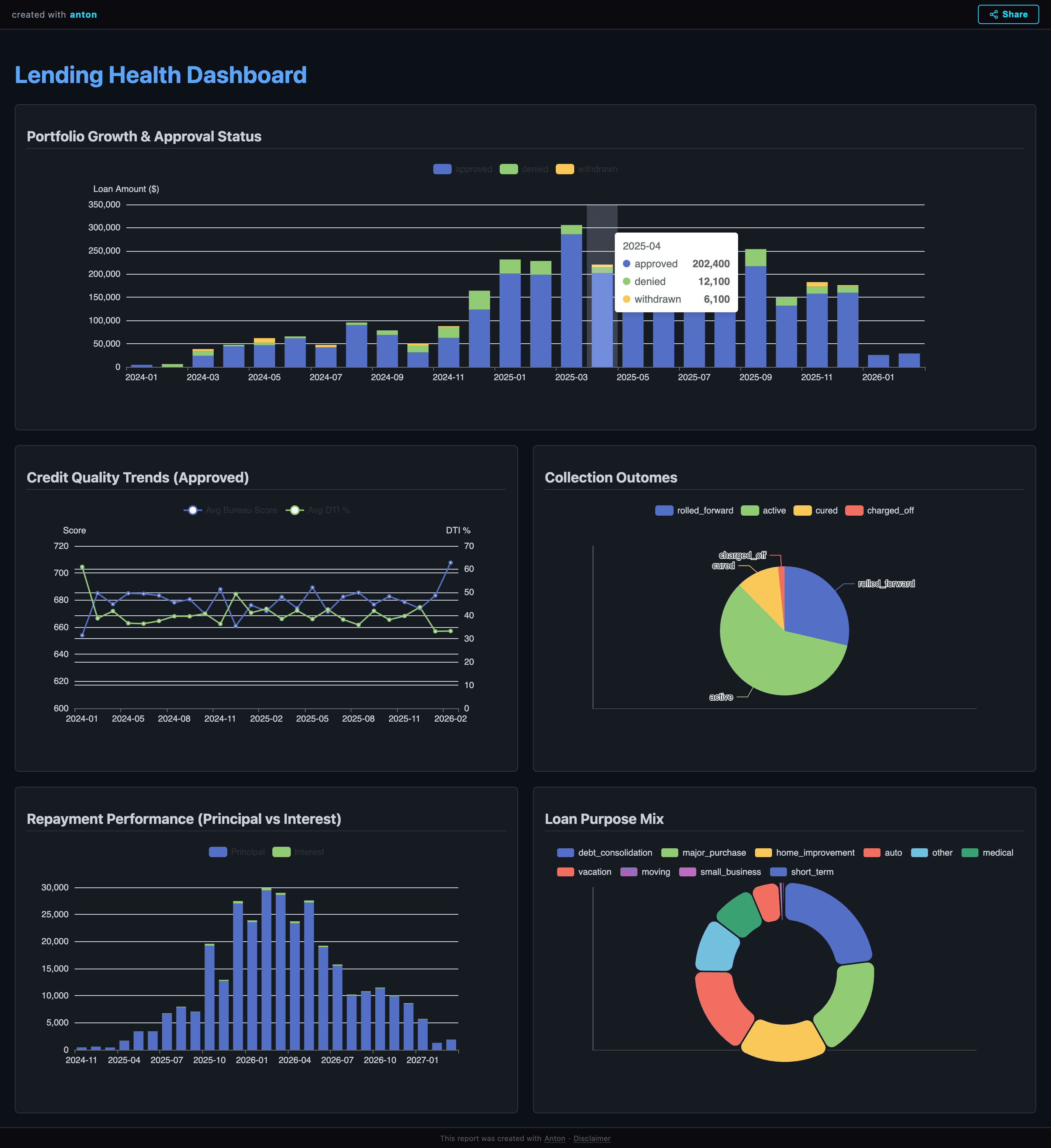
You can ask Anton to modify the dashboard by providing additional details, and it will generate a new version that you can publish later.
This concludes our introductory tutorial to Anton, a powerful open-source AI assistant for data analysts from MindsDB. I encourage you to:
1. Install Anton on your computer
2. Connect it to a familiar dataset
3. Challenge it with complex questions
4. Observe how it uses the scratchpad to execute Python code and retrieve data to provide evidence-based answers
Appendix: Anton Internals
Entry point and CLI — anton/__main__.py, anton/cli.py
As we will see in the tutorial part below, to start the CLI, the user must execute the anton command in the command line. anton, in turn launches python -m anton, which calls app() in cli.py. cli.py is a Typer app that does dependency checks, bootstraps config, handles flags like --folder, runs setup wizards, and ultimately calls run_chat(...) in chat.py. It also wires in the slash-command handlers from anton/commands/ (/connect, /setup, /session, etc.).
ChatSession — anton/chat.py
ChatSession defined in chat.py is the central object that everything else hangs off of. For each conversation, a new ChatSession is created. It owns:
the message history with the LLM,
a reference to the active
LLMClient,a
ScratchpadManager,the
Cortex(memory coordinator),the workspace paths and settings.
ChatSession has functions that stream tokens from the provider, intercepts tool-use events (coming from the LLM), dispatches them to actual tool executors (the actual Python code that implements the tool), and feeds the results back to the LLM. Slash commands (/connect, /publish, etc.) are handled inline as code rather than going through the LLM.
Tool layer — anton/tools.py
This is the bridge between "the LLM emitted a tool call" and "actual Python ran." Tools are registered with the @tool(...) decorator into a registry; build_tool_schemas produces the JSON schemas sent to the model; dispatch_tool routes a tool name to its handler.
chat.py doesn't know what tools exist; it just streams tool-use events and lets tools.py do the dispatch.
Scratchpad — /scratchpad.py, /scratchpad_boot.py
This is Anton's "working memory". A Scratchpad is a long-lived Python subprocess running in its own virtual environment. Cell objects represent each code execution; the subprocess keeps state across cells similarly to how a Jupyter kernel works. ScratchpadManager handles lifecycle: creating, reusing, killing, and compacting scratchpads. scratchpad_boot.py is the script that actually runs inside that subprocess — it sets up the environment, exposes the progress() marker used for inactivity heartbeats, and handles incoming cells over stdio. This is where the real work happens: API calls, pandas, scraping, file generation.
Memory system — /memory/
This is the most elaborately structured part. The architecture mirrors brain regions:
File | Role |
|---|---|
| Executive coordinator. Owns two |
| Storage engine — reads/writes markdown memory files ( |
| Episodic memory. Logs every turn as JSONL in |
| "Sleep replay" — after a scratchpad session ends, replays it via a fast LLM call and extracts durable lessons into semantic memory. |
LLM abstraction — /llm/
provider.py defines an abstract LLMProvider with anthropic.py and openai.py being concrete implementations. client.py's LLMClient is the thin facade ChatSession actually talks to — it picks a provider based on settings and forwards requests. prompts.py holds the system prompt and dynamic prompt builders.
Data vault and datasources — /data_vault.py, /datasource_registry.py, /commands/datasource.py, /config/datasources.md
The vault stores connection secrets. Secret values never go to the LLM — only the names do. When the LLM asks to use a datasource via the connect tool, handle_connect_datasource reads the credentials from the vault and injects them into the scratchpad subprocess's environment, where Python code can use them without the model ever seeing them. datasource_registry.py plus the catalog in config/datasources.md define which connectors exist and how to prompt for their credentials; the /connect slash command in commands/datasource.py drives the interactive setup.
Publisher and channels — /publisher.py, /channel/
publisher.py packages an HTML artifact and POSTs it to the MindsDB-hosted "anton-services" endpoint, returning a public URL. This is what powers "open the dashboard in your browser." channel/branding.py and channel/theme.py style what gets published.
How a single turn flows
Putting it together, here's what happens when you type a message:
cli.pyhas already constructed aChatSessionand entered_chat_loop.Your input is appended to history;
Cortexinjects relevant memory (profile, rules, recalled episodes) into the prompt.LLMClientstreams a response from the chosen provider.As the model emits tool calls,
tools.dispatch_toolruns them — most oftenhandle_scratchpad, which sends a code cell to theScratchpadsubprocess; possiblyhandle_connect_datasourcefirst to inject credentials.Tool results stream back into the model, which iterates until done.
Every turn is logged to the episode JSONL by
episodes.py.When the session ends,
consolidator.pyreplays it and may write new entries torules.md/lessons.mdso the next session is smarter.
I'm really excited to be able to try MindsDB's new open-source agent for conversational analytics. It's different from everything I previously tried in a single crucial aspect: it makes me feel confident and free in choosing how to converse with it, a feeling that I only have when interacting with frontier agentic coding environments like Claude Code and Codex.
Anton takes plain-English requests, pulls data, writes SQL and Python as needed to solve the data analytics task, executes this code, and returns things like tables, charts, explanations, and dashboards. When necessary to answer a user's question, Anton can create multi-step plans that gather partial datasets to then combine them at the end. It works with both public data and connected private data sources.
In this tutorial, I will show you how to install, configure, and use Anton as a data analytics companion. Before we start the tutorial, let's first understand its main parts that make it a powerful and helpful AI assistant.
Anton's main parts
Anton is structured as a brain-inspired loop: a chat session talks to the user and acts as an orchestrator that decides what to do, scratchpads are the working memory where it actually does it, and a memory system records and recalls what it learned. Around that core sit a few infrastructure pieces: the LLM provider abstraction, the data vault, the datasource registry, and the publisher.
At the end of this article, you'll find an appendix detailing each module along with its corresponding source file. As Anton is open-source, I encourage you to examine its codebase firsthand to understand how modern agentic CLI systems work under the hood. For now, here's a high-level overview of Anton's architecture.
Anton is a command-line data assistant made of a few parts that work together in a loop.
The User is the person driving everything from the terminal. They ask questions, request analysis, connect data, or ask Anton to publish results.
The CLI entrypoint is the front door. It starts Anton, accepts the user’s input, and passes that input into the main conversation system.
The ChatSession is the main coordinator. This is the orchestrator of the whole system. It keeps track of the conversation, decides what kind of help is needed next, and connects the user request to the right internal parts. It is responsible for moving the session forward: asking the model to reason, pulling in memory, using tools, and keeping track of the current datasource and scratchpad state.
The Scratchpad is Anton’s working desk for computation. When Anton needs to actually do analysis work, this is where it happens. It is responsible for running Python-based tasks and keeping the working state of that analysis. It is triggered through the tool system and supports requests that need real execution, not just text generation (such as running a Python script, submitting a SQL query to a database management system, calling an API or web search).
The Isolated Python environment is the runtime underneath the scratchpad. It is where code, packages, files, and scratchpad state actually live while work is being done. Its role is to give Anton a contained place to execute analysis safely and separately from the conversation layer.
The LLM client is Anton’s reasoning layer. Its job is to turn the current conversation and context into a next step: explain something, ask for a tool, or decide how to approach a task. It works closely with ChatSession, which gives it the current context and then uses its response to keep the session moving.
The OpenAI provider and Anthropic provider are the model backends behind the LLM client. They are the actual outside model services Anton can rely on. The LLM client chooses and talks to them, while the rest of Anton does not deal with them directly.
The Cortex memory coordinator is Anton’s memory manager. Its purpose is to decide what past information matters right now and what new information should be remembered for later. It sits between ChatSession and Anton’s stored memory, helping Anton stay consistent across tasks instead of treating every request like a totally fresh start.
The Memory files are where that memory lives. They hold saved notes, lessons, topics, and other useful context. Cortex reads from them and writes to them, while ChatSession benefits from that memory indirectly through Cortex.
The Tool registry + handlers are Anton’s action system. This is the part that turns a model decision into real work. If Anton needs to run Python, access credentials, connect to data, or publish an artifact, this module dispatches the right tool. It acts as the bridge between “deciding” and “doing.”
The Vault + datasource tools are responsible for data access and secret handling. Their logic is simple: Anton often needs credentials and datasource connections, but those should not be mixed into the model prompt. This module stores and injects the needed credentials only into the runtime and tools that require them. It interacts with the tool system above it and with the credential store below it.
The Local credential store is where saved credentials live. It supports the vault layer by holding connection details that Anton can reuse. The user benefits from it because they do not need to re-enter everything each time, while the rest of Anton benefits because credentials can be supplied only where needed.
The Publisher is Anton’s output-sharing module. Its role is to take generated artifacts, especially HTML-style outputs, and make them available as something the user can open or share. It is called through the tool system when the user asks for published output.
The Published artifacts box represents the final hosted result of that publishing step. This is the user-facing destination for reports, dashboards, or other shareable outputs created by Anton.
At a high level, the logic of Anton is this: the user asks for something in the CLI, the request enters through the CLI entrypoint, ChatSession coordinates the response, the LLM client helps decide what to do, Cortex provides memory, the tool system carries out actions, Scratchpad handles computation, the vault handles secure data access, and Publisher turns finished outputs into something shareable. All of these parts are separate so Anton can reason, remember, act, and publish without mixing those responsibilities together.
Now that you understand Anton's high-level architecture, let's start with installation.
1. Install Anton from the command line
macOS / Linux
curl -sSf https://raw.githubusercontent.com/mindsdb/anton/main/install.sh | sh && export PATH="$HOME/.local/bin:$PATH"
Windows PowerShell
irm https://raw.githubusercontent.com/mindsdb/anton/main/install.ps1 | iex
2. Launch Anton
Once installed, simply type the bellow command in the command line:
antonIf you want Anton to use a specific workspace directory, run it with the --folder parameter:
anton --folder /path/to/workspace
3. Connect Anton to a data source
Anton accepts some built-in commands that don't require an LLM to understand. These commands are preceded with a forward slash and followed by the command name. You can see all supported built-in commands by typing /help and hitting Enter:
Since we are wanting to analyze some data, we need to point Anton to a source of data. For this, we will use the /connect command:
As you can see, Anton supports a variety of data sources. If the user asks for it during the conversation, Anton can also execute web search and get the web data.
For this tutorial, I will connect to the data I have on Amazon Redshift:
Anton asked for the credentials and I provided then one by one.
Now Anton is connected to a datasource. Let's ask it to describe it for us:
Oh, right, Anton needs an LLM to work and we didn't provide the credentials for any LLM. Let's use /help to see how to do that:
The command we need is /llm:
As you can see, the was Anthropic's Sonnet model already configured, but the key likely expired, so I changed the configuration to use Gemini instead and provided a working Gemini API key.
Now, let's try our datasource description request again:
As you can see from this analysis, the datasource is a Redshift database containing a comprehensive lending dataset.
It tracks the lifecycle of a loan from the initial applicant details through credit checks, application status, repayments, and potential collections.
I'm not an expert in lending, so I will ask Anton to come up with three questions about the data that a financial data analyst would want to ask:
These seem to be interesting questions, so I will allow Anton answer the first one:
As you can see, Anton solved the task in three steps, each of which involved using the scratchpad to pull the data and make the necessary aggregations:
Calculate Cure Rate and Net Charge-Off metrics from database
Get total approved principal to calculate NCO rate.
Finalize portfolio total for NCO rate calculation.
Now let's test Anton's built-in dashboard feature:
As you can see, I asked Anton to build a dashboard in plain English. I could add any detail I need, but I decided to let Anton decide what graphs to put on the dashboard.
The dashboard was generated as an HTML file saved on my local hard drive. Anton supports the `/publish` command that allows sharing the dashboard with anyone online:
The URL is reachable by anyone with the link. If you click on it, you will see the dashboard generated by Anton:
You can ask Anton to modify the dashboard by providing additional details, and it will generate a new version that you can publish later.
This concludes our introductory tutorial to Anton, a powerful open-source AI assistant for data analysts from MindsDB. I encourage you to:
1. Install Anton on your computer
2. Connect it to a familiar dataset
3. Challenge it with complex questions
4. Observe how it uses the scratchpad to execute Python code and retrieve data to provide evidence-based answers
Appendix: Anton Internals
Entry point and CLI — anton/__main__.py, anton/cli.py
As we will see in the tutorial part below, to start the CLI, the user must execute the anton command in the command line. anton, in turn launches python -m anton, which calls app() in cli.py. cli.py is a Typer app that does dependency checks, bootstraps config, handles flags like --folder, runs setup wizards, and ultimately calls run_chat(...) in chat.py. It also wires in the slash-command handlers from anton/commands/ (/connect, /setup, /session, etc.).
ChatSession — anton/chat.py
ChatSession defined in chat.py is the central object that everything else hangs off of. For each conversation, a new ChatSession is created. It owns:
the message history with the LLM,
a reference to the active
LLMClient,a
ScratchpadManager,the
Cortex(memory coordinator),the workspace paths and settings.
ChatSession has functions that stream tokens from the provider, intercepts tool-use events (coming from the LLM), dispatches them to actual tool executors (the actual Python code that implements the tool), and feeds the results back to the LLM. Slash commands (/connect, /publish, etc.) are handled inline as code rather than going through the LLM.
Tool layer — anton/tools.py
This is the bridge between "the LLM emitted a tool call" and "actual Python ran." Tools are registered with the @tool(...) decorator into a registry; build_tool_schemas produces the JSON schemas sent to the model; dispatch_tool routes a tool name to its handler.
chat.py doesn't know what tools exist; it just streams tool-use events and lets tools.py do the dispatch.
Scratchpad — /scratchpad.py, /scratchpad_boot.py
This is Anton's "working memory". A Scratchpad is a long-lived Python subprocess running in its own virtual environment. Cell objects represent each code execution; the subprocess keeps state across cells similarly to how a Jupyter kernel works. ScratchpadManager handles lifecycle: creating, reusing, killing, and compacting scratchpads. scratchpad_boot.py is the script that actually runs inside that subprocess — it sets up the environment, exposes the progress() marker used for inactivity heartbeats, and handles incoming cells over stdio. This is where the real work happens: API calls, pandas, scraping, file generation.
Memory system — /memory/
This is the most elaborately structured part. The architecture mirrors brain regions:
File | Role |
|---|---|
| Executive coordinator. Owns two |
| Storage engine — reads/writes markdown memory files ( |
| Episodic memory. Logs every turn as JSONL in |
| "Sleep replay" — after a scratchpad session ends, replays it via a fast LLM call and extracts durable lessons into semantic memory. |
LLM abstraction — /llm/
provider.py defines an abstract LLMProvider with anthropic.py and openai.py being concrete implementations. client.py's LLMClient is the thin facade ChatSession actually talks to — it picks a provider based on settings and forwards requests. prompts.py holds the system prompt and dynamic prompt builders.
Data vault and datasources — /data_vault.py, /datasource_registry.py, /commands/datasource.py, /config/datasources.md
The vault stores connection secrets. Secret values never go to the LLM — only the names do. When the LLM asks to use a datasource via the connect tool, handle_connect_datasource reads the credentials from the vault and injects them into the scratchpad subprocess's environment, where Python code can use them without the model ever seeing them. datasource_registry.py plus the catalog in config/datasources.md define which connectors exist and how to prompt for their credentials; the /connect slash command in commands/datasource.py drives the interactive setup.
Publisher and channels — /publisher.py, /channel/
publisher.py packages an HTML artifact and POSTs it to the MindsDB-hosted "anton-services" endpoint, returning a public URL. This is what powers "open the dashboard in your browser." channel/branding.py and channel/theme.py style what gets published.
How a single turn flows
Putting it together, here's what happens when you type a message:
cli.pyhas already constructed aChatSessionand entered_chat_loop.Your input is appended to history;
Cortexinjects relevant memory (profile, rules, recalled episodes) into the prompt.LLMClientstreams a response from the chosen provider.As the model emits tool calls,
tools.dispatch_toolruns them — most oftenhandle_scratchpad, which sends a code cell to theScratchpadsubprocess; possiblyhandle_connect_datasourcefirst to inject credentials.Tool results stream back into the model, which iterates until done.
Every turn is logged to the episode JSONL by
episodes.py.When the session ends,
consolidator.pyreplays it and may write new entries torules.md/lessons.mdso the next session is smarter.
Products
Open Source
© 2026 All rights reserved by MindsDB.

Start conversational analytics with MindsDB
Production-ready infrastructure for agentic analytics
Start conversational analytics with MindsDB
Production-ready infrastructure for agentic analytics

Products
Open Source
© 2026 All rights reserved by MindsDB.

Products
Open Source
© 2026 All rights reserved by MindsDB.
Start conversational analytics with MindsDB
Production-ready infrastructure for agentic analytics